How to send a photo to ChatGPT, Claude, Gemini or Copilot and ask about it
Fancy listening instead? Here’s this post as a three-minute podcast. I created it with Google’s free Gemini Notebook, which turned my words into a friendly chat between two AI presenters. It’s a great example of what you could do with AI too. For now the presenters have American voices, so forgive them if they trip over a Norfolk name or two.
The hearing aid in the gravel
Just after Easter, not long after I got my new hearing aids, I dropped one in the gravel in my back garden. It’s grey and about the size of the stones around it, so I just couldn’t spot it. I didn’t hold out much hope. Still, I took close-up photos of the two places I thought it might be and asked ChatGPT to look. In the second photo, it told me to look near the step, then drew a circle and an arrow on my photo pointing right at it. There it was. It was a real eureka moment. I was shocked, first that it had worked at all and then that it had done something so helpful when I’d doubted it could.
AI can look at a photo and tell you what’s in it, read what’s written on it or answer a question about it. Think of it as a second pair of eyes in your pocket.
If you already know how to add a photo, jump straight to things worth photographing or what to ask.
On a phone or tablet
You can take a photo there and then or choose one you’ve already taken. It works the same way in ChatGPT, Claude, Gemini and Copilot.
- Open your AI app and tap the + next to the box where you type.
- Tap Camera to take a photo now or Photos to choose one you already have. The words vary a little from app to app.
- The first time, your phone will ask whether the app can use your camera or photos. Tap Allow. I explain these questions in my post on downloading the app.
- Take or choose your photo. It appears in the box where you type.
- Type your question underneath and tap the arrow to send.
On a computer
- Click the + or the paperclip next to the box where you type.
- Choose the option to upload a photo or file. In Copilot it’s called “Upload images and files”.
- Find your photo, click it and click Open.
- Type your question and send it.
In Copilot you may need to sign in with a free Microsoft account first.
Getting a good photo
- Good light helps. Daylight is best. Turn the light on if you’re indoors.
- Get close. Fill the picture with the thing you’re asking about.
- One thing at a time. One plant, one label, one warning light.
- Get it all in. For a label or a letter, make sure none of the words are cut off at the edges.
Screenshots count too
A screenshot is a picture of whatever is on your screen. You send it in exactly the same way as a photo. Here’s how to take one:
- iPhone or iPad: press the side or top button and volume up together. If yours has a round Home button, press that and the side or top button instead.
- Android: press the power button and volume down together. On some phones you hold the power button and tap Screenshot.
- Windows: press the Windows key, Shift and S together, then choose what to capture from the buttons that appear. Your screenshot is then ready to paste straight into the box with Ctrl and V, just like the words in my copy and paste post.
- Mac: press Shift, Command and 5 together, then choose what to capture from the buttons that appear.
Screenshots are a great help when you’re stuck on a screen. My post on getting AI to teach you shows you how.
Things worth photographing
If you can point your camera at it, AI can usually help. These are just a few ideas to get you thinking:
- Around the home: the model plate on an appliance, a message on the boiler display, a mark on the wall you’re not sure about. My posts on gadget problems and jobs around the home go further.
- In the kitchen: what’s left in the fridge, a recipe in an old cookbook you’d like to halve. More in my fridge recipe post.
- Paperwork: letters and bills that arrived on paper, small print you’re struggling to read. My post on bills and official letters has ideas for what to ask.
A good habit before you send a photo of a letter or bill: cover or crop out your account number and address. AI reads the rest just as well without them, the same postcard rule I explain in my post for anyone unsure about AI.
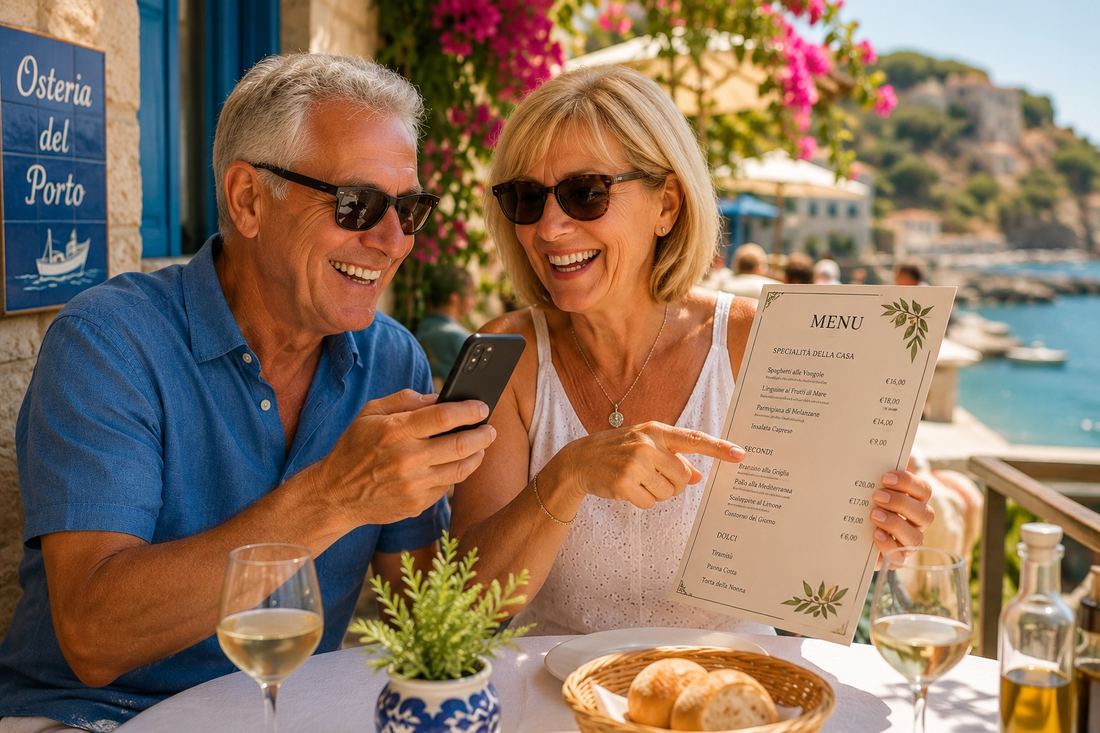
- Out and about: a warning light on the dashboard, a menu abroad, a church or a view you’d like to know more about, a bird or a flower you don’t recognise. See car problems and menu translation.
- Buying and selling: something you’re thinking of selling, to get an idea of what it’s worth. More in my valuation post.
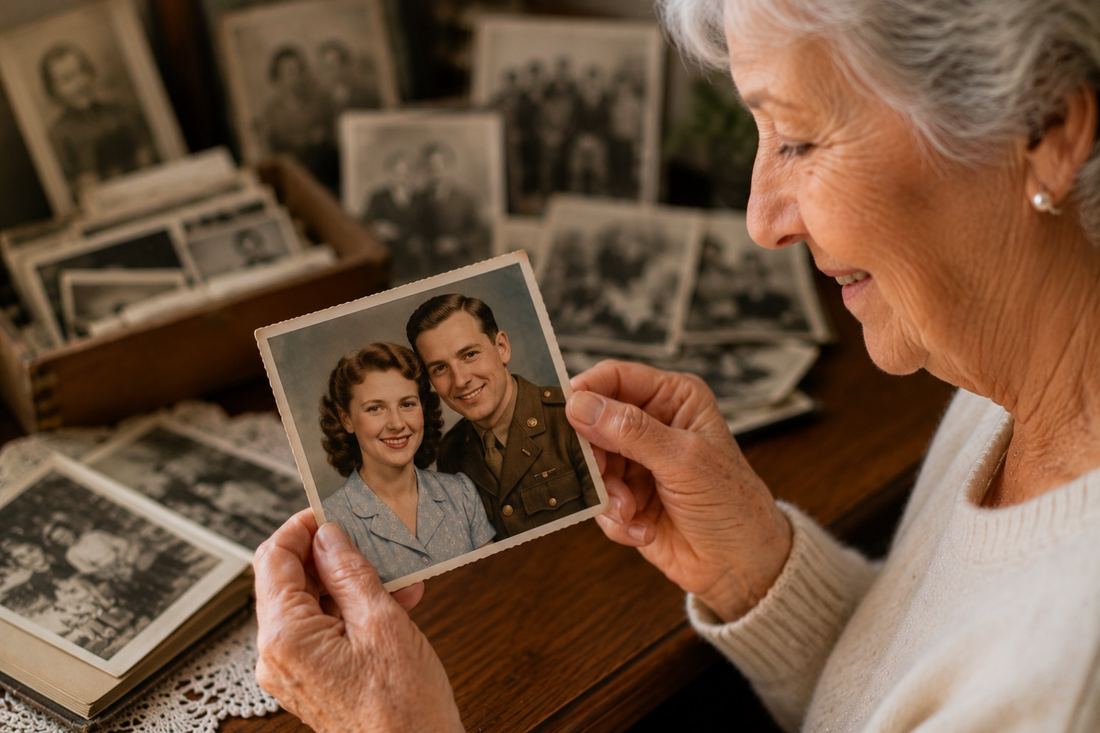
- Family and memories: an old photo you’d like to know more about or even restore. My post on fixing old photos shows how.
What to ask
Once your photo is in the box, ask the way you’d ask a friend who knows about the subject. Add anything they’d need to know, such as where you are or what you’ve already tried.
The first time I tried this, I took a photo of the red robin standard in my front garden and asked when I could trim it. I added “In Norfolk” so it knew where I was. It told me what the plant was, the best time of year to trim it and that it was in excellent condition. It even said the basic shape was already there, so I only needed to tidy it up.
If the first answer doesn’t quite cover it, ask a follow-up question. You can keep going for as long as you like.
Where to go from here
That’s the beginner path done. From here, pick whatever suits your life. My blog page has posts on letters, health, holidays, hobbies, money and much more, each one written so you can dive straight in.
If you’d like to learn a whole subject from scratch, such as astronomy, a language or a period of history, my post on using AI as your personal tutor shows you how.
A note on dates. Everything here was checked when it was written and I go back over my posts regularly to keep them up to date. Apps, prices and rules do change, so for anything important a quick look at the official source is worth it.

Want to go further?
My book, AI For Your Life, goes into all of this in much more detail. It is written in plain English, full of practical examples and designed for people who want to get useful things done with AI. Available on Amazon.
If you’d prefer to work through it with someone alongside you, I also offer one-to-one sessions where you can go at your own pace, ask anything you like and get hands-on with whatever you want to try. Get in touch to find out more.
Find out about the book Ask about one-to-one sessions Try apps, songs & games made with AI